Saturday, 3 March 2012

How to Increase Your Computer (PC) Life?


Top 10 PC Tips:-

1.Let your PC boot up completely before opening any applications.

2.Refresh the desktop after closing any application. This will remove any unused files from the RAM.

3.Do not set very large file size images as your wallpaper. Do not keep a wallpaper at all if your PC is low on RAM (less than 64 MB).

4.Do not clutter your Desktop with a lot of shortcuts. Each shortcut on the desktop uses up to 500 bytes of RAM

5.Empty the recycle bin regularly. The files are not really deleted from your hard drive until you empty the recycle bin.

6.Delete the temporary internet files regularly.

7.Defragment your hard drive once every two months. This will free up a lot of space on your hard drive and rearrange the files so that your applications run faster.

8.Always make two partitions in your hard drive. Install all large Softwares (like PSP, Photoshop, 3DS Max etc) in the second partition. Windows uses all the available empty space in C drive as virtual memory when your Computer RAM is full. Keep the C Drive as empty as possible.

9.When installing new Softwares disable the option of having a tray icon. The tray icons use up available RAM, and also slow down the booting of your PC. Also disable the option of starting the application automatically when the PC boots. You can disable these options later on also from the Tools or preferences menu in your application.

10. Protect your PC from dust. Dust causes the CPU cooling fan to jam and slow down thereby gradually heating your CPU and affecting the processing speed. Use compressed air to blow out any dust from the CPU. Never use vacuum. RAM IS THE WORKING AREA (DESKTOP) OF THE CPU, KEEP IT AS EMPTY AND UNCLUTTERED AS POSSIBLE!
-
TechFunz.blogspot.com

Generations Of Computers


Each generation of computer is characterized by a major technological development that fundamentally changed the way computers operate, resulting in increasingly smaller, cheaper, more powerful and more efficient and reliable devices.

The history of computer development is often referred to in reference to the different generations of computing devices. Each generation of computer is characterized by a major technological development that fundamentally changed the way computers operate, resulting in increasingly smaller, cheaper, more powerful and more efficient and reliable devices. Read about each generation and the developments that led to the current devices that we use today.


First Generation (1940-1956) Vacuum Tubes

The first computers used vacuum tubes for circuitry and magnetic drums for memory, and were often enormous, taking up entire rooms. They were very expensive to operate and in addition to using a great deal of electricity, generated a lot of heat, which was often the cause of malfunctions.
First generation computers relied on machine language, the lowest-level programming language understood by computers, to perform operations, and they could only solve one problem at a time. Input was based on punched cards and paper tape, and output was displayed on printouts.
The UNIVAC and ENIAC computers are examples of first-generation computing devices. The UNIVAC was the first commercial computer delivered to a business client, the U.S. Census Bureau in 1951.

Second Generation (1956-1963) Transistors

Transistors replaced vacuum tubes and ushered in the second generation of computers. The transistor was invented in 1947 but did not see widespread use in computers until the late 1950s. The transistor was far superior to the vacuum tube, allowing computers to become smaller, faster, cheaper, more energy-efficient and more reliable than their first-generation predecessors. Though the transistor still generated a great deal of heat that subjected the computer to damage, it was a vast improvement over the vacuum tube. Second-generation computers still relied on punched cards for input and printouts for output.
Second-generation computers moved from cryptic binary machine language to symbolic, or assembly, languages, which allowed programmers to specify instructions in words. High-level programming languages were also being developed at this time, such as early versions of COBOL and FORTRAN. These were also the first computers that stored their instructions in their memory, which moved from a magnetic drum to magnetic core technology.
The first computers of this generation were developed for the atomic energy industry.

Third Generation (1964-1971) Integrated Circuits

The development of the integrated circuit was the hallmark of the third generation of computers. Transistors were miniaturized and placed on silicon chips, called semiconductors, which drastically increased the speed and efficiency of computers.
Instead of punched cards and printouts, users interacted with third generation computers through keyboards and monitors and interfaced with an operating system, which allowed the device to run many different applications at one time with a central program that monitored the memory. Computers for the first time became accessible to a mass audience because they were smaller and cheaper than their predecessors.

Fourth Generation (1971-Present) Microprocessors

The microprocessor brought the fourth generation of computers, as thousands of integrated circuits were built onto a single silicon chip. What in the first generation filled an entire room could now fit in the palm of the hand. The Intel 4004 chip, developed in 1971, located all the components of the computer—from the central processing unit and memory to input/output controls—on a single chip.
In 1981 IBM introduced its first computer for the home user, and in 1984 Apple introduced the Macintosh. Microprocessors also moved out of the realm of desktop computers and into many areas of life as more and more everyday products began to use microprocessors.
As these small computers became more powerful, they could be linked together to form networks, which eventually led to the development of the Internet. Fourth generation computers also saw the development of GUIs, the mouse and handheld devices.

Fifth Generation (Present and Beyond) Artificial Intelligence

Fifth generation computing devices, based on artificial intelligence, are still in development, though there are some applications, such as voice recognition, that are being used today. The use of parallel processing and superconductors is helping to make artificial intelligence a reality. Quantum computation and molecular and nanotechnology will radically change the face of computers in years to come. The goal of fifth-generation computing is to develop devices that respond to natural language input and are capable of learning and self-organization.

DID YOU KNOW...?
An integrated circuit (IC) is a small electronic device made out of a semiconductor material. The first integrated circuit was developed in the 1950s by Jack Kilby of Texas Instruments and Robert Noyce of Fairchild Semiconductor.

-
TechFunz.blogspot.com

Saturday, 10 September 2011

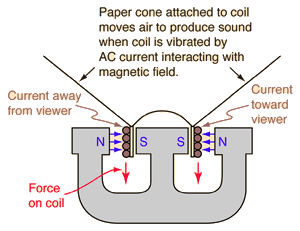
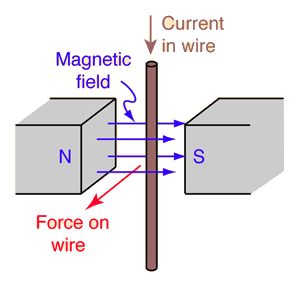
DYNAMIC LOUDSPEAKER PRINCIPLE

Dynamic Loudspeaker Principle


A current-carrying wire in a magnetic field experiences a magnetic force perpendicular to the wire.

An audio signal source such as a microphone or recording produces an electrical "image" of the sound. That is, it produces an electrical signal that has the same frequency and harmonic content, and a size that reflects the relative intensity of the sound as it changes. The job of the amplifier is to take that electrical image and make it larger -- large enough in power to drive the coils of a loudspeaker. Having a "high fidelity" amplifier means that you make it larger without changing any of its properties. Any changes would be perceived as distortions of the sound since the human ear is amazingly sensitive to such changes. Once the amplifier has made the electrical image large enough, it applies it to the voice coils of the loudspeaker, making them vibrate with a pattern that follows the variations of the original signal. The voice coil is attached to and drives the cone of the loudspeaker, which in turn drives the air. This action on the air produces sound that more-or-less reproduces the sound pressure variations of the original signal.
-
TechFunz.blogspot.com

Wednesday, 3 August 2011

nokia secret codes


*3370# This Nokia code activates Enhanced Full Rate Codec (EFR)–Your Nokia cell phone uses the best sound quality but talk time is reduced my approx. 5%
#3370# Deactivate Enhanced Full Rate Codec (EFR) .
*#4720# Activate Half Rate Codec–Your phone uses a lower quality sound but you should gain approx 30% more Talk Time.
*#4720# With this Nokia code you can deactivate the Half Rate Codec.
*#0000# Displays your phones software version, 1st Line : Software Version, 2nd Line : Software Release Date, 3rd Line : Compression Type .
*#9999# Phones software version if *#0000# does not work.
*#06# For checking the International Mobile Equipment Identity (IMEI Number) .
#pw+1234567890+1# Provider Lock Status. (use the“*”button to obtain the“p,w”and“+”symbols)
#pw+1234567890+2# Network Lock Status. (use the“*”button to obtain the“p,w”and“+”symbols) .
#pw+1234567890+3# Country Lock Status. (use the“*”button to obtain the“p,w”and“+”symbols)
*#21# This phone code allows you to check the number that“All Calls”are diverted to.
*#2640# Displays phone security code in use .
*#30# Lets you see the private number.
*#43# Allows you to check the“Call Waiting”status of your cell phone.
*#61# Allows you to check the number that“On No Reply”calls are diverted to .
*#62# Allows you to check the number that“Divert If Unreachable (no service)”calls are diverted to*#67# Allows you to check the number that“On Busy Calls”are diverted to
*#67705646# Phone code that removes operator logo on 3310&3330
*#73# Reset phone timers and game scores.
*#746025625# Displays the SIM Clock status, if your phone supports this power saving feature“SIM Clock Stop Allowed”, it means you will get the best standby time possible .
*#7760# Manufactures code.
*#7780# Restore factory settings.
*#92702689# Displays–1.Serial Number, 2.Date Made, 3.Purchase Date, 4.Date of last repair (0000 for no repairs), 5.Transfer User Data. To exit this mode you need to switch your phone off then on again.
*#94870345123456789# Deactivate the PWM-Mem**21*number# Turn on“All Calls”diverting to the phone number entered.
**61*number# Turn on“No Reply”diverting to the phone number entered .
**67*number# Turn on“On Busy”diverting to the phone number entered . 12345 This is the default security code . press and hold  # Lets you switch between lines
-
NOTE:- These cods r working in nokia s60 devices according to their versions

Saturday, 16 July 2011

Microsoft Excel Shortcuts

MS EXCEL Shortcuts:-
Shortcut Keys Description
F2 Edit the selected cell.
F5 Go to a specific cell. For example, C6.
F7 Spell check selected text or document.
F11 Create chart.
Ctrl + Shift + ; Enter the current time.
Ctrl + ; Enter the current date.
Alt + Shift + F1 Insert New Worksheet.
Shift + F3 Open the Excel formula window.
Shift + F5 Bring up search box.
Ctrl + A Select all contents of the worksheet.
Ctrl + B Bold highlighted selection.
Ctrl + I Italic highlighted selection.
Ctrl + K Insert link.
Ctrl + U Underline highlighted selection.
Ctrl + 5 Strikethrough highlighted selection.
Ctrl + P Bring up the print dialog box to begin printing.
Ctrl + Z Undo last action.
Ctrl + F9 Minimize current window.
Ctrl + F10 Maximize currently selected window.
Ctrl + F6 Switch between open workbooks / windows.
Ctrl + Page up Move between Excel work sheets in the same Excel document.
Ctrl + Page down Move between Excel work sheets in the same Excel document.
Ctrl + Tab Move between Two or more open Excel files.
Alt + = Create a formula to sum all of the above cells
Ctrl + ' Insert the value of the above cell into cell currently selected.
Ctrl + Shift + ! Format number in comma format.
Ctrl + Shift + $ Format number in currency format.
Ctrl + Shift + # Format number in date format.
Ctrl + Shift + % Format number in percentage format.
Ctrl + Shift + ^ Format number in scientific format.
Ctrl + Shift + @ Format number in time format.
Ctrl + Arrow key Move to next section of text.
Ctrl + Space Select entire column.

Shift + Space Select entire row.
-
Join Tech_MasTer to 9223492234
-
TechFunz.blogspot.com